Quick Start Guide
Get up and running with Divvi in minutes
Create an Account
Click "Get started free" on the homepage or go to /register. Enter your full name, email address, and a strong password. After submitting, check your inbox for a verification email and click the link inside to activate your account. Until your address is verified, you can't add bills, payments or other items to a house.
💡 Tip: Use a strong password and keep it secure. You'll need it to access your bills!
ℹ️ Note: Your Pro trial begins as soon as you sign up, no credit card needed. The welcome shows the date it ends; after that you're on the Free plan unless you choose one.
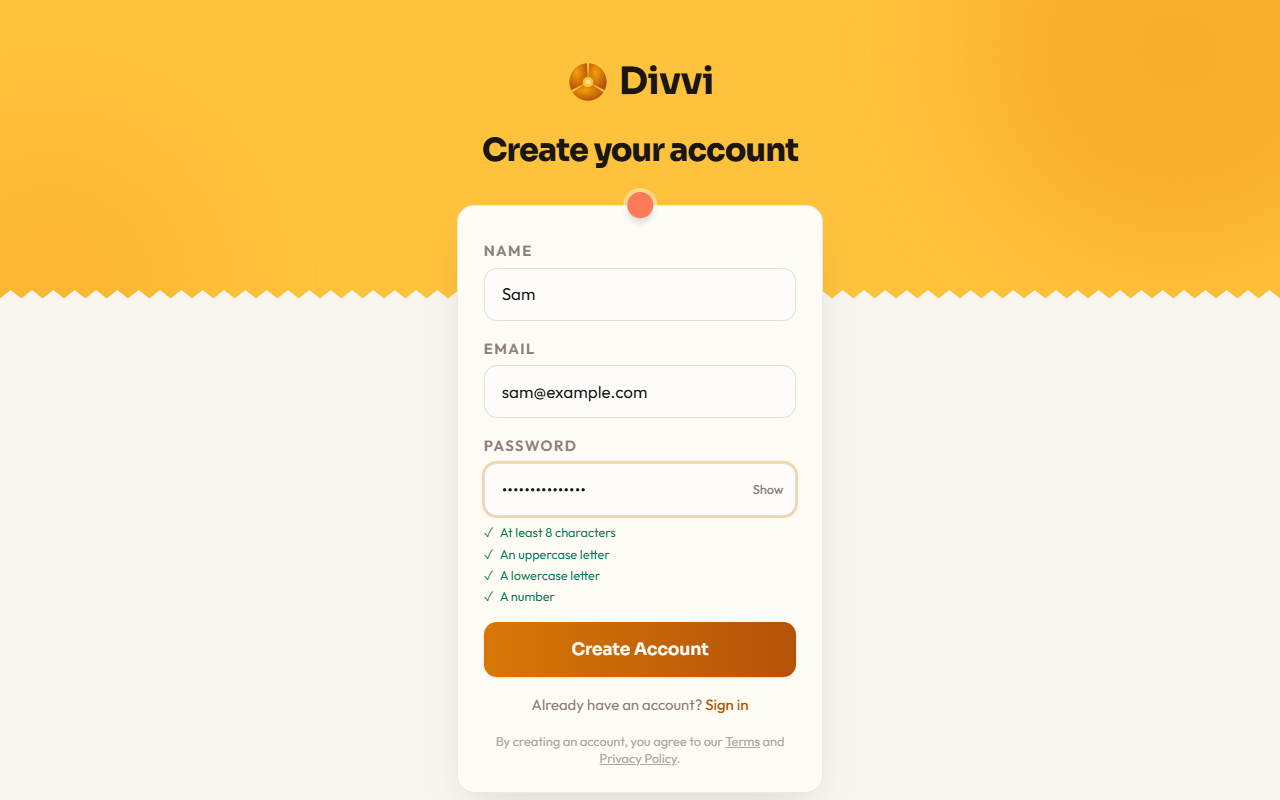
The registration form — all three fields are required to create your account.
Create or Join a House
After you sign up, a three-step welcome opens. Its last step, 'Set up your house', takes you straight to the form to create a house or enter an invite code. You can also type a name under 'Create a new house' on the House List page and click Create. If a roommate sent you an invite link, open it and you'll join their house after signing in; if they sent the 8-character code instead, click 'Have an invite code?' and paste it. You can belong to multiple houses — for example, your current apartment and a vacation cabin.
💡 Tip: The invite code is in Settings → House, under Invite Code. It's case-sensitive.
⚠️ Warning: If the invite code doesn't work, ask the house owner to regenerate it in Settings. Old codes are invalidated when a new one is generated.
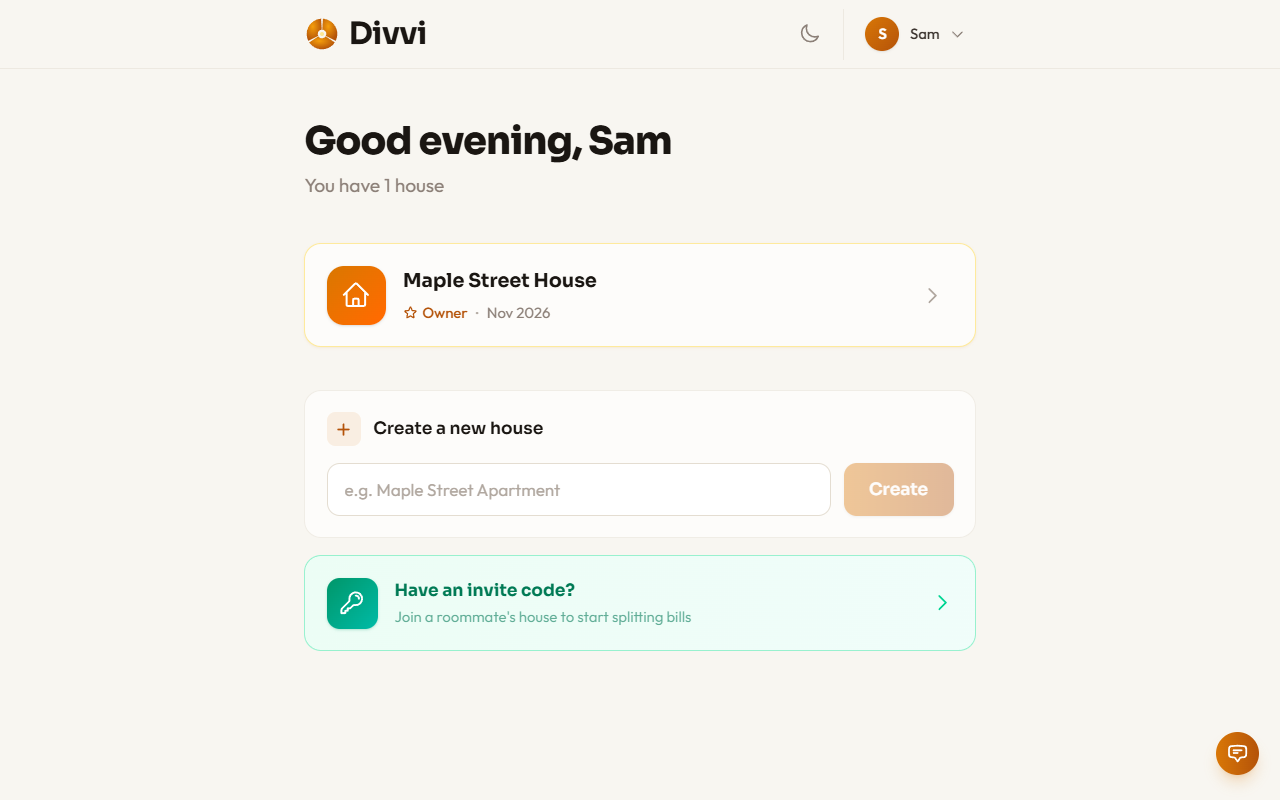
Your house list — create new or join an existing house with an invite code.
Add Roommates
The easiest way is to send your roommates the invite link from Settings → House → Invite Code. Each person who joins with it gets their own entry in the house, sees their own bills and balances, and gets notifications. For someone who won't use Divvi, go to Settings → House → Roommates, type their name and click Add — you can then record bills and payments for them.
💡 Tip: Roommates who joined with the invite show a Joined badge in Settings → House → Roommates.
ℹ️ Note: If someone you added by name joins later, Divvi asks them which roommate they are. Once you confirm it under Settings → House → Connect roommates to their accounts, their account takes over that entry, with all of its bills and payments.
Add Your First Bill
Click the 'Add' tab in the navigation. Enter a description (e.g., 'March Rent'), the total amount, and the date. Select the category, choose who paid the bill out of pocket, then decide how to split it. The default 'Equal' split divides the amount evenly among all roommates. Click 'Add Bill' to save — the Dashboard will immediately show updated balances.
💡 Tip: Start with a simple equal split to get familiar with the process.
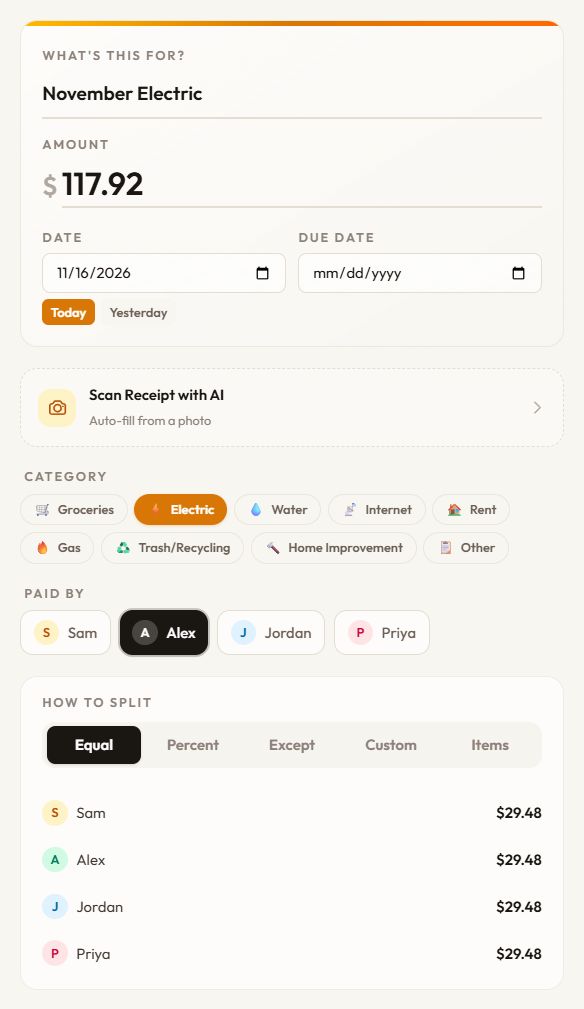
The bill creation form — fill in the details and click Add Bill.
Troubleshooting
Didn't receive verification email
Check your spam folder first. If not found within 5 minutes, click "Resend" in the banner at the top of the app. Make sure you're checking the email address you registered with.
Invite code not working
Make sure you entered the code exactly as shown — it is case-sensitive. Ask the house owner to regenerate the code in Settings → House → Invite Code if issues persist.
Can't see the Add tab
Make sure you've selected a house first. From the House List, click on your house to enter it. The navigation tabs only appear when you're inside a house.