Adding Bills
Complete guide to all bill creation options
Using Templates
If you've saved templates from previous bills, click "Templates" at the top of the Add Bill form to auto-fill the bill details. Select any saved template (e.g., "Monthly Rent") and all fields populate instantly — just verify the amount and date, then save. Templates are a major time-saver for recurring expenses.
💡 Tip: Templates remember the description, amount, category, paid-by, and split settings — everything except the date.
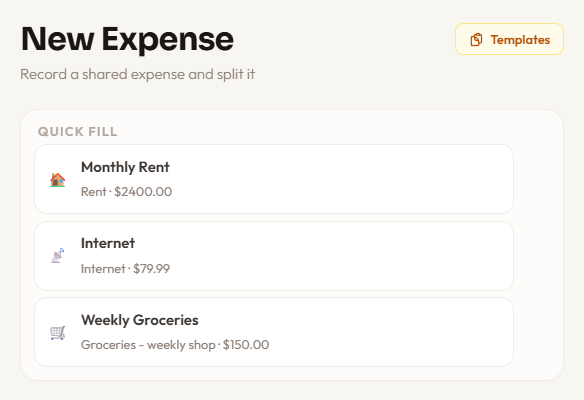
Select a template to instantly fill in all bill fields.
Split Modes Explained
Divvi offers four split modes. Equal divides the total evenly among all roommates — the most common choice. Percentage assigns custom percentages (e.g., if one person has the master bedroom). Equal Except splits evenly while excluding selected roommates (e.g., someone who was traveling). Custom $ lets you enter exact dollar amounts per person for complete control.
ℹ️ Note: The split mode you choose only affects this single bill — each bill can have a different split method.
Percentage Split
Select Percentage mode and enter a percent for each roommate — they must sum to exactly 100%. Use the quick preset buttons (50/50, 60/40, 70/30, or Split Evenly) to apply common distributions instantly without typing. Great for situations where roommates agreed on unequal rent shares.
⚠️ Warning: Percentages must total exactly 100%. The form shows the running total and prevents saving if it doesn't match.
Equal Except
Select Equal Except mode and check the boxes of roommates to exclude from this bill. Everyone not excluded pays an equal share. This is the quickest way to handle situations like 'Alex is on vacation so doesn't pay for this grocery run'.
💡 Tip: Equal Except is faster than Custom $ when you just need to remove one or two people from an otherwise even split.
Custom Amount Split
Select Custom $ mode and enter the exact dollar amount each roommate owes. A running total shows how much of the bill has been allocated. All amounts must sum to the total bill amount. Use this when you have a very specific split agreement that percentages can't express cleanly.
⚠️ Warning: The sum of all custom amounts must equal the total bill amount exactly. The form will not allow saving until this is satisfied.
Attachments
Click 'Add image or PDF' to attach a receipt photo or PDF (up to 5 MB) to the bill. Attached receipts are stored securely and can be viewed by all house members from Bill History. To attach more than one file, add the others afterwards with the paperclip icon on the bill in Bill History.
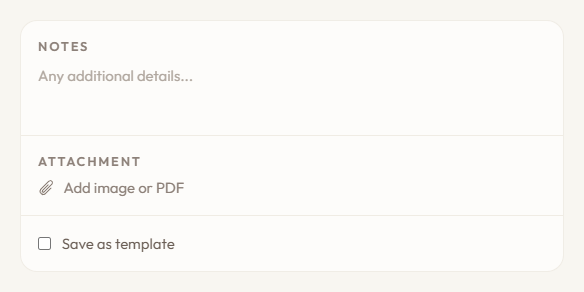
Click Add image or PDF to attach a receipt photo or PDF to the bill.
Save as Template
Check "Save as template" before saving and give it a descriptive name like "Monthly Internet" or "Weekly Groceries". The template saves all current form settings. Next time you add this bill, load the template and it will fill in instantly. Templates can be managed from the Templates section within the Add Bill form.
Troubleshooting
Can't save bill — validation error
Check that: (1) Description is not empty, (2) Amount is a positive number, (3) A payer is selected, (4) For Custom $, all amounts sum to the total, (5) For Percentage, all percentages sum to 100%. Red highlights indicate the problem field.
Receipt file won't upload
Check the file format (JPG, PNG, GIF, or PDF only) and file size. Very large files may be rejected. Try compressing the image before uploading.
Related Guides
Your First Bill
Step-by-step guide to adding your first bill
Recurring Bills
Set up automatic bill generation
Custom Categories
Create personalized bill categories
Bill Templates
Save bill configurations as reusable templates to speed up adding recurring expenses
Receipt Scanning
Upload, attach, and view receipt photos on bills for a complete paper trail