Dashboard
Your financial overview at a glance
Welcome Section
The top of the Dashboard shows a personalized greeting, any pinned house announcements, and a quick snapshot of your expense status. Pinned announcements appear here automatically so nothing important gets missed.
Overdue Bills Alert
If any bills are overdue or due within 7 days, a highlighted alert banner appears at the top with the count of affected bills. Click "View in Bill History" to see their details and take action. Staying on top of overdue bills prevents disputes.
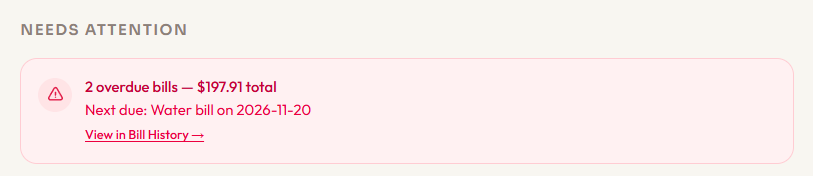
Overdue and due-soon bills appear as an alert banner at the top of the Dashboard.
Budget Progress
If you've set monthly budget limits in Settings, progress bars appear on the Dashboard showing how much of each category budget you've used this month. Green bars are on track; red bars mean you've exceeded the limit. Click any bar to jump to Bill History filtered to that category.
ℹ️ Note: Budget bars only appear if you've set up budget limits in Settings → House → Monthly Budgets.
Pulse & Rules Prompts
If you haven't submitted this month's Pulse Survey or acknowledged the latest House Rules, prompt cards appear as reminders. Click the card to go directly to the relevant page. These prompts disappear once you've completed the action.
Your Balance Cards
Three summary cards show: your overall net balance (positive = owed to you, negative = you owe), the total you owe across all roommates combined, and the total amount owed to you. Clicking any card navigates to Settle Up where you can record or request payments.
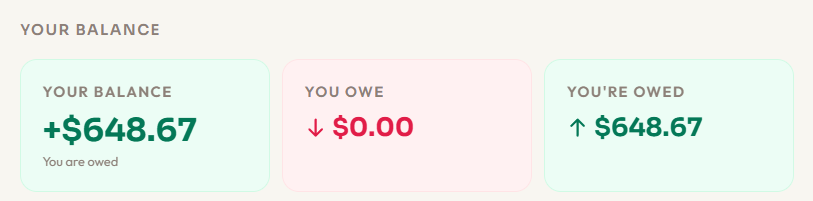
Your three balance cards give an instant financial snapshot.
All Balances Grid
Below your personal cards, a grid shows every roommate's balance. Green = they're owed money, Red = they owe money, Gray = they're settled up. This lets anyone in the house see the full financial picture at a glance without navigating to individual profiles.
Who Owes Whom
This optimized list shows the fewest transactions needed to settle all debts in the house. Instead of everyone paying everyone else, Divvi calculates the most efficient payment path. Follow this list when it's time to settle up — it saves time and transfers.
💡 Tip: The 'Smart Settle' feature in Settle Up uses this same optimized algorithm.
Recent Bills
The five most recent bills appear at the bottom for a quick view of what's been added. Each entry shows description, amount, payer, and date. Click "View all" to go to the full Bill History with search and filter tools.
Troubleshooting
Dashboard not updating after adding a bill or payment
Pull down to refresh on mobile or reload the page on desktop. Balances recalculate automatically when bills or payments change — sometimes a page refresh is needed to see the latest data.
Budget bars not showing
Budget progress bars only appear if you've set budget limits. Go to Settings → House → Monthly Budgets to set your first budget limit.