Invite Links
Share house invite codes and links with new roommates
Find Your Invite Code
Navigate to Settings → House. The Invite Code section shows your house's 8-character code. This is what you share with new roommates so they can join your house.
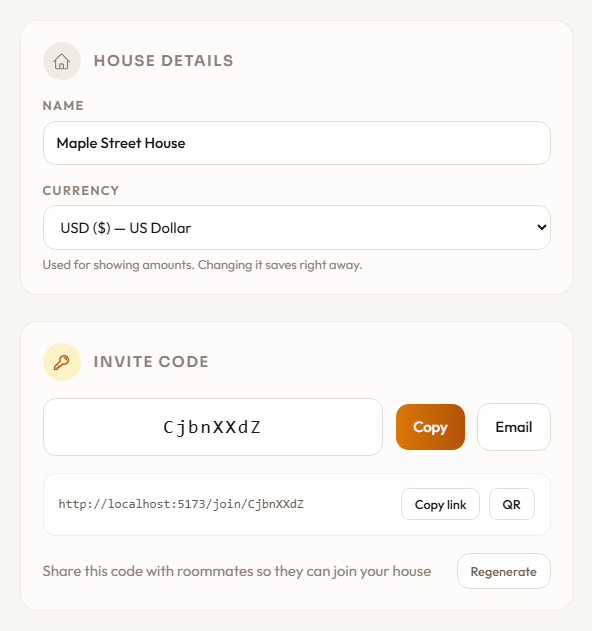
Your house invite code is always available in Settings.
Share the Invite Link
Click 'Copy link' (or Share, on a phone) and send the link in a text, email, or group chat. It opens a page showing which house they're joining and who invited them. You can also click Copy to copy just the code, Email to send it from Divvi, or QR to show a code they can scan. The code is case-sensitive.
💡 Tip: Send the link rather than reading the code aloud — nothing has to be typed, so there are no typos.
New Roommate Joins the House
The new roommate opens the link, signs up (or signs in), and is added to the house with their own entry and a Joined badge in Settings → House → Roommates. Someone with an account who received only the code can paste it under 'Have an invite code?' on their house list.
ℹ️ Note: If someone you added by name joins later, Divvi asks them which roommate they are. Once you confirm it under Settings → House → Connect roommates to their accounts, their account takes over that entry, with all of its bills and payments.
Regenerate the Code
If the code was accidentally shared with someone who shouldn't have access, click 'Regenerate' next to the code in Settings. A new random code is generated immediately and the old one stops working.
⚠️ Warning: Regenerating the code invalidates the old one immediately. Anyone trying to join with the old code will get an error. Share the new code with any remaining roommates who haven't joined yet.
Troubleshooting
Roommate says the invite code is invalid
Verify they're entering the exact code — it is case-sensitive. Copy the code fresh from Settings and send it again. If it still doesn't work, click Regenerate to create a fresh code.
A roommate who joined appears twice
This happens when they were added by name before joining and didn't pick their name when asked. In Settings → House → Connect roommates to their accounts, choose who the name-only roommate is and click Merge. The name you added keeps its bills and payments and gets their account; everyone else's balances don't change.