Bill History
Search, filter, and manage all your bills
Search Bills
Type in the search box to find bills by description or notes. Results update as you type. Your recent searches are saved and shown as suggestions when you focus the search box — click any suggestion to re-run it quickly.
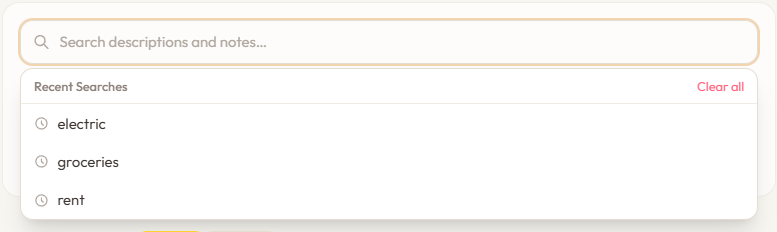
Search by description or notes. Recent searches are saved for quick access.
Filter by Category
Select a category from the dropdown to show only bills in that category (e.g., Utilities, Rent, Groceries). This is useful for quickly finding all electric bills or all grocery runs when reviewing spending.
Filter by Roommate
Show only bills paid by a specific roommate. This is useful for auditing what one person has paid out of pocket, or when a roommate asks what they've contributed.
Date Range Filter
Set From and To dates to find bills within a specific time period. For example, set From=2026-01-01 and To=2026-01-31 to see all January bills. Combine with category or roommate filters for even more precision.
Amount Range Filter
Enter minimum and/or maximum dollar amounts to find bills within a price range. Useful for finding that $400 vet bill you vaguely remember adding, or all bills over $100.
Save Filters
When filters are active, click "Save Filter" to name and save the combination as a quick-access chip. For example, save a filter for all Rent bills in 2026 and label it "2026 Rent". Saved filter chips appear above the list for one-click access.
💡 Tip: Save filters you use frequently, like 'This Month Groceries' or 'All Alex Bills', to save time.
Sort Results
Sort by Date or Amount using the sort buttons. Click the same button again to toggle between ascending and descending order. The current sort direction is shown with an arrow indicator.
Export to CSV
Click "Export CSV" to download the currently filtered bills as a comma-separated spreadsheet. This is ideal for record-keeping, sharing with a landlord, or importing into budgeting tools. Only bills matching your active filters are exported.
ℹ️ Note: The export includes bill description, amount, category, date, payer, and each roommate's split amount.
Edit or Delete Bills
Click the pencil icon to edit any field of a bill — description, amount, category, payer, or split. Click the trash icon to delete. After deleting, an undo toast appears for a few seconds. After that window closes, the deletion is permanent.
⚠️ Warning: Deleting a bill is permanent after the undo window closes. Make sure you have the right bill before confirming deletion — it affects everyone's balances.
Attach Receipts After Saving
Click the paperclip icon on any existing bill to upload a receipt image or PDF after the bill was created. You can attach multiple receipts to one bill. All house members can then view them by clicking the thumbnail.
Dispute a Bill
Click the "Dispute" button on any bill to raise a formal disagreement — enter a reason and your proposed fair amount. The dispute creates a discussion thread where all roommates can comment and negotiate. Once resolved, the bill owner or house owner can mark it settled.
Set Up Payment Plan
Click "Payment Plan" on a large bill to break it into installments. Set the number of installments, frequency (weekly/monthly), and start date. Each roommate's installment schedule is shown before you confirm.
Photo Gallery
Bills with attached receipt photos show a thumbnail in the bill row. Click the thumbnail to open a full-screen gallery viewer where you can swipe between multiple receipts and zoom in for details.
Troubleshooting
Bill not showing in results
Click "Clear filters" to reset all active filters. Check that no date range, amount range, or category filter is excluding your bill. Also verify the bill was actually saved — go to Dashboard and check Recent Bills.
Export CSV is empty or missing bills
The export only includes bills matching your current filters. If you want all bills, clear all filters first, then export.