Understanding Balances
How Divvi calculates who owes what
Individual Balances
Each roommate has a single balance shown on the Dashboard. Green (positive) means they have paid more than their share and are owed money by the house. Red (negative) means they owe money to the house. Zero means they are perfectly settled up. These balances account for every bill and every recorded payment across all time.
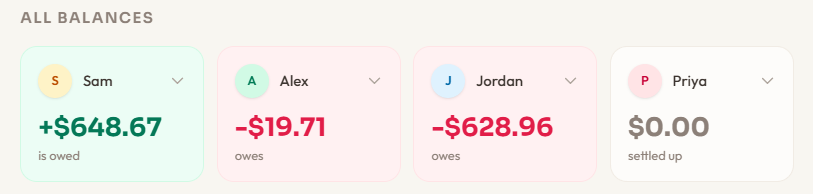
Green = owed money, red = owes money, gray = settled up.
How It's Calculated
Balance = (Total amount paid across all bills) minus (Total of this person's share across all bills) plus (Payments received) minus (Payments made). Example: Alex paid $600 in bills total, has a $400 share of those bills, and paid $50 to Jordan. Alex's balance is +$150, meaning the house owes Alex $150.
ℹ️ Note: Balances are cumulative across all time, not just the current month. Use the Monthly Summary page to view a single month's data.
Who Owes Whom
The "Who Owes Whom" section shows the most efficient path to settle all debts. Instead of everyone paying everyone else, Divvi's algorithm minimizes the total number of transactions. For example, instead of A paying B $50 and B paying C $30, it might calculate that A pays C $20 and A pays B $30 — same result, fewer transfers.
💡 Tip: Always follow the Who Owes Whom list when settling — it results in fewer bank transfers for everyone.
Recording Payments
When someone pays another roommate back via Venmo, Zelle, cash, or any other method, you must record the payment in Divvi through "Settle Up". Divvi has no connection to external payment apps, so unrecorded payments leave balances incorrect. After recording, both balances update immediately.
⚠️ Warning: Divvi cannot detect Venmo, Zelle, or bank transfers automatically. Every payment must be manually recorded in Settle Up or balances will remain wrong.
Confirming Payments
When a roommate records a payment to you, a Confirm button appears in Settle Up. Clicking it marks the payment as verified — useful for preventing duplicate entries and confirming money was actually received.
Troubleshooting
Balance seems incorrect
Check Bill History to ensure all bills have the correct amounts, payers, and splits. Then verify all payments are recorded in Settle Up. Use the Charts page to review spending by person. Edit any incorrect bill from Bill History.
Balance isn't updating after a payment
Pull to refresh on mobile or reload the page. If still wrong, confirm the payment was saved in Settle Up → Payment History.