IOUs
Track informal debts between roommates outside the normal bill system
What Are IOUs?
IOUs let you track informal debts between roommates that don't fit the normal bill-splitting flow. Examples: lending a roommate $20 for lunch, borrowing money for a concert ticket, or any other one-off transfer. Unlike regular bills, IOUs are direct between two people rather than split across the whole house.
ℹ️ Note: IOUs affect the same shared balances as regular bills. An IOU from Alex to Jordan increases Jordan's balance and decreases Alex's — just like a payment.
Create an IOU
Navigate to IOUs from the More menu. Click 'New IOU' to open the creation form. Select who owes (the borrower), who is owed (the lender), enter the amount, add a description so everyone remembers what it's for, and optionally set a due date to prompt repayment.
⚠️ Warning: The borrower and lender must be different roommates. You cannot create an IOU from someone to themselves.
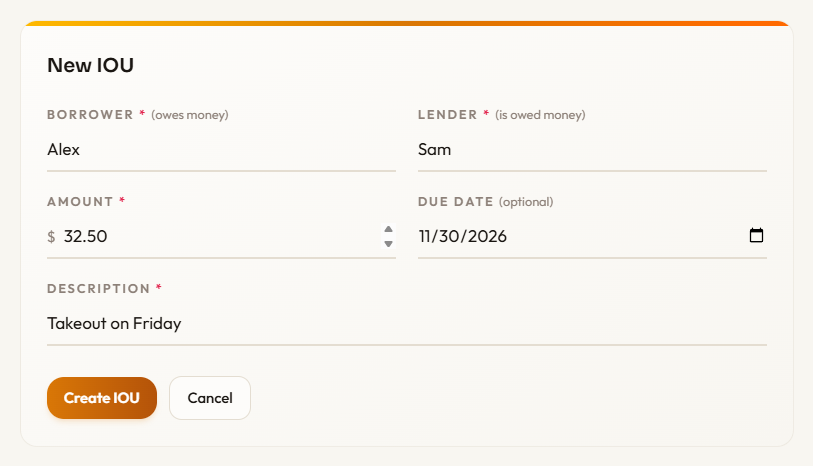
Fill in the borrower, lender, amount, and a clear description.
View Outstanding IOUs
The main IOUs page shows all active (unsettled) IOUs for the house. Each card shows the borrower's avatar, lender's avatar, amount owed, description, creation date, and optional due date. Overdue IOUs are highlighted in red.
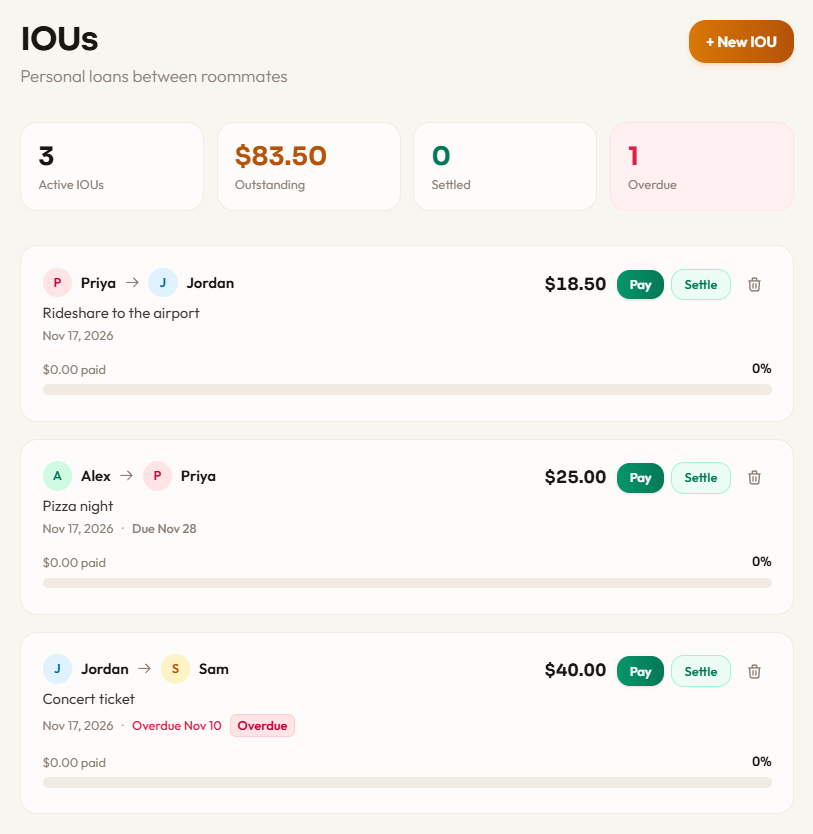
Outstanding IOUs appear as cards. Overdue ones are highlighted in red.
Record a Repayment
When the borrower pays back some or all of the IOU, click 'Pay' on the IOU card. Enter the amount being paid (it doesn't have to be the full amount — partial repayments are supported). The IOU balance updates immediately after saving.
💡 Tip: You can make multiple partial payments on a single IOU. The remaining balance is always shown on the card.
View Settled IOUs
Once an IOU is fully paid, it moves to the Settled section at the bottom of the page. This section is collapsed by default — click 'Show Settled' to expand it. Settled IOUs are kept for historical reference and cannot be deleted.
ℹ️ Note: Settled IOUs are hidden by default to keep the page focused on what needs attention. Expand the settled section only when you need to review history.
Delete an IOU
To delete an IOU (for example, if it was created by mistake), click the trash icon on the card and confirm the deletion. Deleting an IOU reverses its effect on balances — as if it never existed.
⚠️ Warning: Deleting an IOU with partial repayments recorded also removes those repayments. This affects the balance history. Only delete IOUs that were created in error.
Troubleshooting
IOU not showing in the list
Make sure you're in the correct house. IOUs are house-specific. If you just created it, try refreshing the page.
Balance doesn't reflect the IOU
IOUs update balances immediately. If the Dashboard balance looks wrong, pull to refresh or reload the page. Check that the IOU was saved successfully by finding it in the IOU list.