Exporting Data
Download your bills and payments as CSV or Excel for record-keeping and tax purposes
Export Bills as CSV from Bill History
Navigate to Bill History. Apply any filters you want (date range, category, roommate) to narrow the export to just the data you need. Click 'Export CSV' at the top of the page. A CSV file downloads to your device containing all bills matching the active filters.
💡 Tip: For year-end tax records, set the date filter to January 1 through December 31 and export all bills at once.
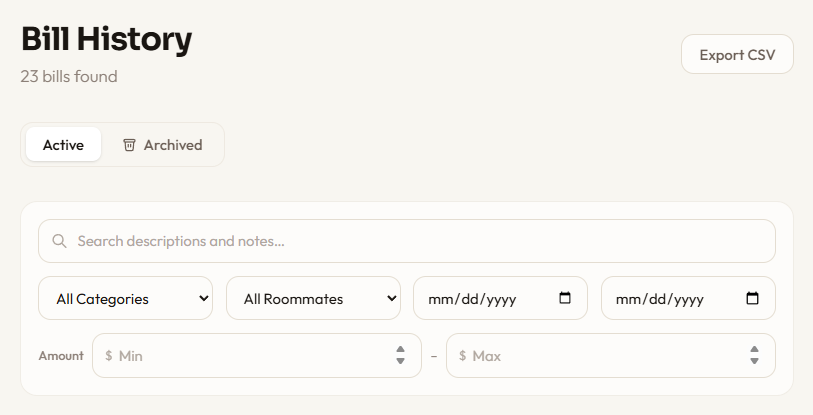
Click Export CSV to download bills matching your current filters.
What the CSV Contains
The exported CSV file includes: Bill description, total amount, date, category, paid-by roommate name, and each roommate's individual split amount. You can open this in Excel, Google Sheets, or any spreadsheet app for further analysis or record-keeping.
ℹ️ Note: The CSV export only includes bills — not payments or balances. For a complete financial export, use the Excel export in Settings → Data → Export & backup.
Full Excel Export from Settings
For a comprehensive export, go to Settings → Data → Export & backup and click 'Download' next to 'Spreadsheet (Excel)'. This downloads an .xlsx file with multiple sheets: Bills (all bills with splits), Payments (all recorded payments), and Roommates (the roster). This is the most complete export format for record-keeping.
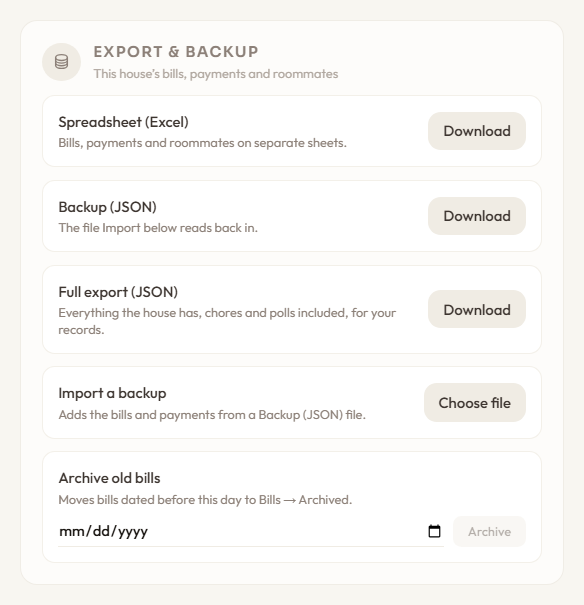
The Excel export includes bills, payments, and roommates across three sheets.
Import Data
If you have a Backup (JSON) file from Divvi, go to Settings → Data → Export & backup and click 'Choose file' next to 'Import a backup'. This is useful when setting up a new house from a previous one or recovering from data loss.
⚠️ Warning: Importing data merges with your current data — it does not replace it. Duplicate bills may be created if you import the same data twice. Review before importing.
Troubleshooting
CSV is empty or missing bills
The CSV only exports bills matching your active filters. Clear all filters in Bill History and try the export again to get all bills.
Import fails with an error
Import reads the Backup (JSON) format only (not the Full export). Download a Backup (JSON) from Settings → Data → Export & backup and use that file.