Bill Calendar
View your bills on a monthly calendar to visualize payment timing and due dates
Navigate to Calendar
Open the More menu in the navigation bar and select Calendar. The calendar shows the current month by default, with colored dots on days that have bills dated on or due that day.
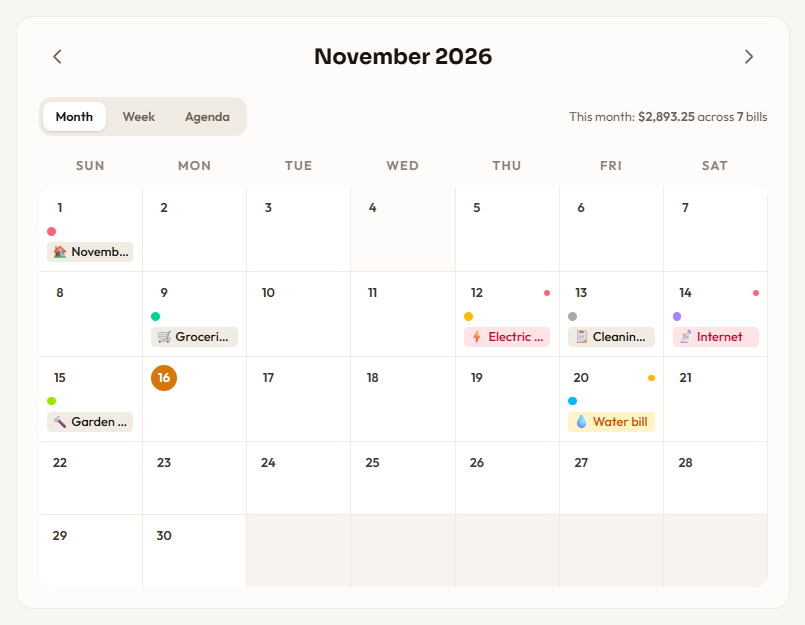
Each dot represents a bill. Colors correspond to bill categories.
Understand the Color Dots
Each dot on the calendar corresponds to a bill. The dot color reflects the bill's category — for example, amber for Electric, sky blue for Water, rose for Rent, emerald for Groceries. Multiple dots appear on a day if multiple bills fall on that date. This gives you an at-a-glance view of your spending distribution.
ℹ️ Note: Dot colors are fixed per category and cannot be customized. Custom categories use the amber/default color.
Navigate Between Months
Use the left (←) and right (→) arrow buttons next to the month name to navigate to previous and future months. There is no limit — you can view months from your entire history or plan ahead for future recurring bills.
Switch View Modes
The calendar supports three view modes: Month view (the default grid), Week view (shows only the current week for a closer look), and Agenda view (a chronological list of bills without a grid). Switch between them using the view mode selector buttons at the top.

Switch between Month, Week, and Agenda views to suit your preference.
Click a Day to See Bills
Click any day on the calendar grid to see a list of bills that fall on that date. Each bill shows the description, amount, payer, and category icon. Click a bill to navigate directly to it in Bill History.
💡 Tip: This is the fastest way to look up 'what was that bill from the 15th?' without searching.
Filter by Category
Use the category filter dropdown to show only bills from a specific category on the calendar. For example, filter to Utilities to see only utility bill dates, or Rent to see rent due dates. The dot counts update to reflect the filter.
Troubleshooting
No dots showing on the calendar
Check that you have bills entered for the selected month. Navigate to Bill History and verify bills exist with dates in that month. Also check if a category filter is active — clear it to see all bills.
A bill doesn't appear on the expected date
Bills appear on their bill Date field, not their due date. Check the bill in Bill History to see which date was entered.