Bill Templates
Save bill configurations as reusable templates to speed up adding recurring expenses
What Templates Save You
Templates store a complete bill configuration — description, amount, category, paid-by setting, and split method. When you load a template, all these fields fill in instantly. For monthly bills like rent, internet, or electricity, templates cut bill entry from 2 minutes to 15 seconds.
💡 Tip: Create templates for every bill you pay at least monthly. The time savings compound quickly.
Save a Bill as a Template
When adding any bill, scroll to the bottom of the Add Bill form. Check the 'Save as template' checkbox. A name field appears — enter a descriptive name like 'Monthly Internet' or 'Weekly Groceries'. Click Add Bill to save both the bill and the template at the same time.
ℹ️ Note: Templates save the amount, category, payer, and split settings — not the date or notes. You'll still set those each time.
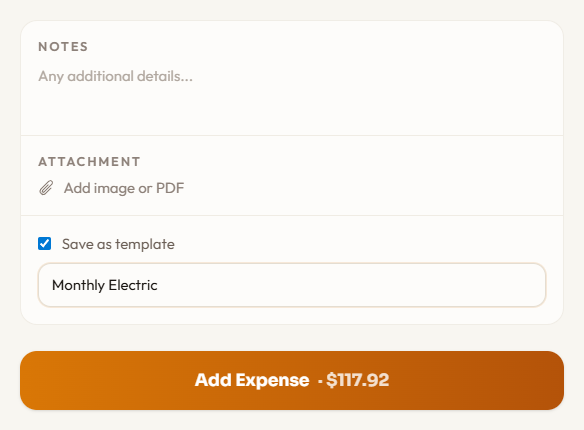
Check 'Save as template' and give it a name before clicking Add Expense.
Use a Template
Navigate to Add Bill. At the top of the form, click the 'Templates' button. A panel slides open showing all your saved templates. Click any template to instantly populate all form fields. Review and adjust the amount (in case the bill changed) and set today's date, then click Add Bill.
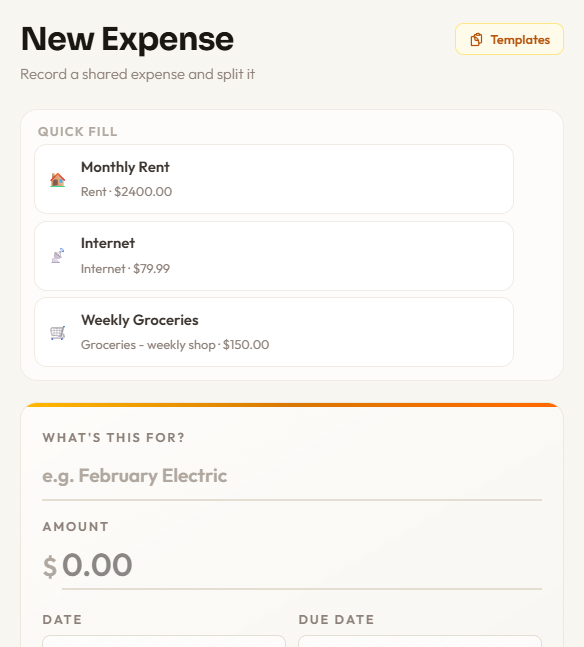
Click any template to auto-fill the entire bill form.
Manage Templates
Within the Templates panel in Add Bill, each template has a trash icon to delete it. Deleting a template does not affect any bills previously created from it. Review your template list periodically and remove templates for bills you no longer pay.
⚠️ Warning: There is no way to edit a template directly — delete the old one and create a new bill with the updated settings, saving that as a new template.
Templates vs Recurring Bills
Templates and recurring bills serve different purposes. A template is a saved form configuration — you still manually add the bill each month. A recurring bill auto-generates on a schedule. Use templates for bills where the amount varies month-to-month (groceries, utilities). Use recurring bills for fixed monthly charges (rent, Netflix).
ℹ️ Note: For maximum efficiency: use recurring bills for fixed amounts, templates for variable amounts that follow the same pattern.
Troubleshooting
Template panel is empty
You haven't saved any templates yet. Add a bill with the 'Save as template' checkbox checked to create your first template.
Template loads wrong amount
Templates save the amount at the time they were created. If the bill amount changed, simply update the Amount field after loading the template. Consider deleting the old template and saving a new one with the correct amount.