Contracts
Track provider contracts, renewal dates, and monthly rates for house services
What Are Contracts?
Contracts track ongoing service agreements for your house — internet plans, gym memberships, streaming subscriptions, pest control, etc. For each contract, Divvi records the provider name, category, monthly rate, contract dates, and renewal date. You'll be alerted when contracts are coming up for renewal.
ℹ️ Note: Contracts are for tracking purposes only — Divvi does not automatically pay or cancel anything on your behalf.
Add a Contract
Navigate to Contracts from the More menu. Click 'New Contract' to open the form. Enter the provider name (e.g., 'Comcast Internet'), select a category (Internet, Utilities, etc.), enter the monthly rate, set the contract start and end dates, set the renewal date (usually 30–60 days before end), and add any notes. Click Save.
💡 Tip: Set the renewal date to 30 days before the contract end date to give yourself time to shop around or negotiate.
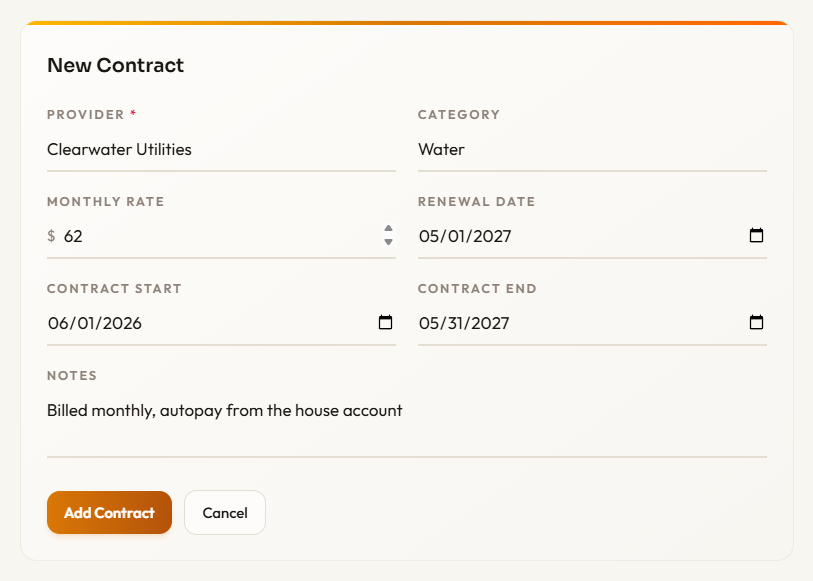
Track every service contract in one place — never miss a renewal.
Renewal Alerts
Contracts with a renewal date within the next 30 days show an amber 'Renewing soon' badge on their card. Review these contracts and decide whether to renew, renegotiate, or switch providers. The alert appears automatically — no setup required.
View Rate History
Each contract card has an expandable rate history section. Click the 'Rate History' button to see how the monthly rate has changed over time. This is automatically recorded whenever you edit the monthly rate — useful for spotting hidden price increases.
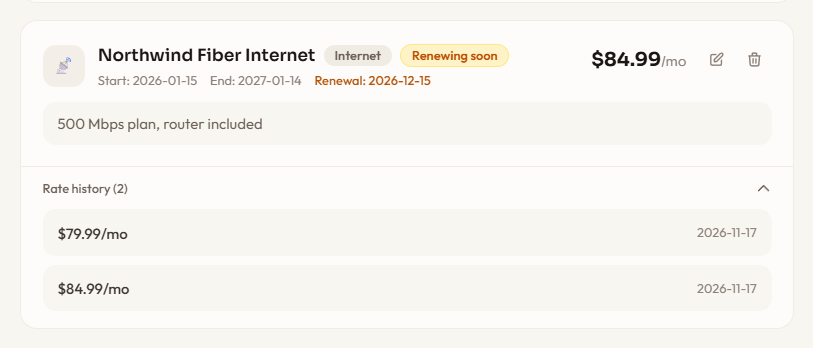
Rate history lets you see if your provider has been quietly raising prices.
Edit a Contract
Click the pencil icon on any contract card to edit the details. When you update the monthly rate, the old rate is automatically saved to the rate history with a timestamp. This lets you track changes over the lifetime of the contract.
Delete a Contract
Click the trash icon and confirm to permanently delete a contract and all its rate history. Delete contracts for services you've canceled — keeping only active contracts makes the list more useful.
⚠️ Warning: Deleting a contract removes all its rate history permanently.
Troubleshooting
Contract not showing renewal alert
The renewal alert appears when the renewal date is within 30 days of today. Check that you entered the renewal date correctly — it should be before the contract end date.