AI Bill Analysis
Let Divvi's AI analyze receipt photos to extract bill details automatically
What AI Analysis Does
Scan Receipt with AI reads a photo of a receipt and fills in the bill form for you: the description (usually the merchant), the total amount, the date and, when it matches one of your categories, the category. It saves you typing the details by hand.
ℹ️ Note: It works best on clear, flat, well-lit photos of printed receipts. Handwritten or faded receipts may be read less accurately. It reads photos only, not PDFs.
Scan a Receipt
Open Add in your house. At the top of the form, click 'Scan Receipt with AI' and choose a photo of the receipt (up to 5 MB; on a phone you can take one). After a few seconds the description, amount, date and category fields are filled in.
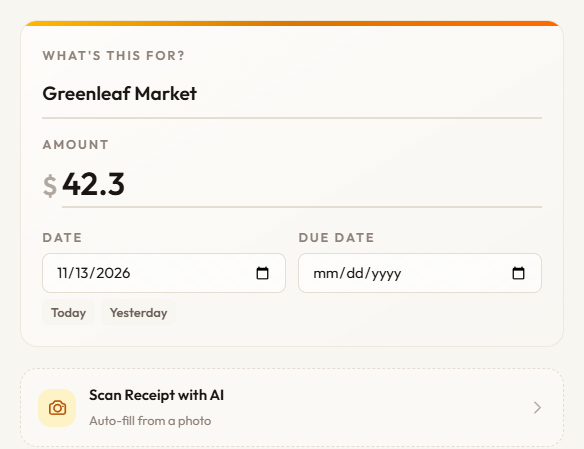
After a scan, the name, amount, and date from your receipt photo are filled in for you.
Check What Was Filled In
Compare the filled-in fields with the receipt. Check: Does the amount match exactly? Is the description what you want roommates to see? Is the date right? Is the category right? The AI can sometimes misread numbers, especially on faded or photographed-at-an-angle receipts.
⚠️ Warning: Always check the values against the receipt before saving. An incorrect amount saved as a bill gives every roommate a wrong balance.
Edit and Save
Correct any field that is wrong by typing over it, choose who paid and how to split it, then click Add Expense. Nothing is saved until you do, so you can also clear the fields and enter the bill yourself.
💡 Tip: Scanning fills in the form as a starting point, not a final answer. To keep the receipt with the bill, also attach the photo under Attachment.
When AI Analysis Is Available
Scan Receipt with AI is available on the Pro ($4.99/month) and Household ($9.99/month) plans, and during the free trial. On the Free plan the scan button isn't shown; you can still attach receipt photos and type the details. Compare plans in Settings → Plan & billing.
ℹ️ Note: You can type bill details by hand on any plan. Scanning is a convenience that speeds up data entry.
Troubleshooting
The scan didn't fill anything in, or showed an error
This can happen with very blurry photos, handwritten receipts, images where the total is hidden, PDFs (only photos can be scanned), or files over 5 MB. Try a cleaner photo with better lighting. If there's no Scan Receipt with AI button at all, your house is on the Free plan.
AI extracted the wrong amount
Type the correct amount over it before saving. For future receipts, try photographing the receipt flat on a surface with good lighting to improve AI accuracy.